See every event detected in GA4 — view_item, form_submit,
begin_checkout, purchase, and more — with Event Count, Sessions, Users,
and Events/User. Click Track on any event to start monitoring it as a conversion, set a goal target,
and get notified when you hit it.
From all GA4 events to goal progress, conversion details, and email notifications — full conversion visibility right inside your WordPress dashboard.
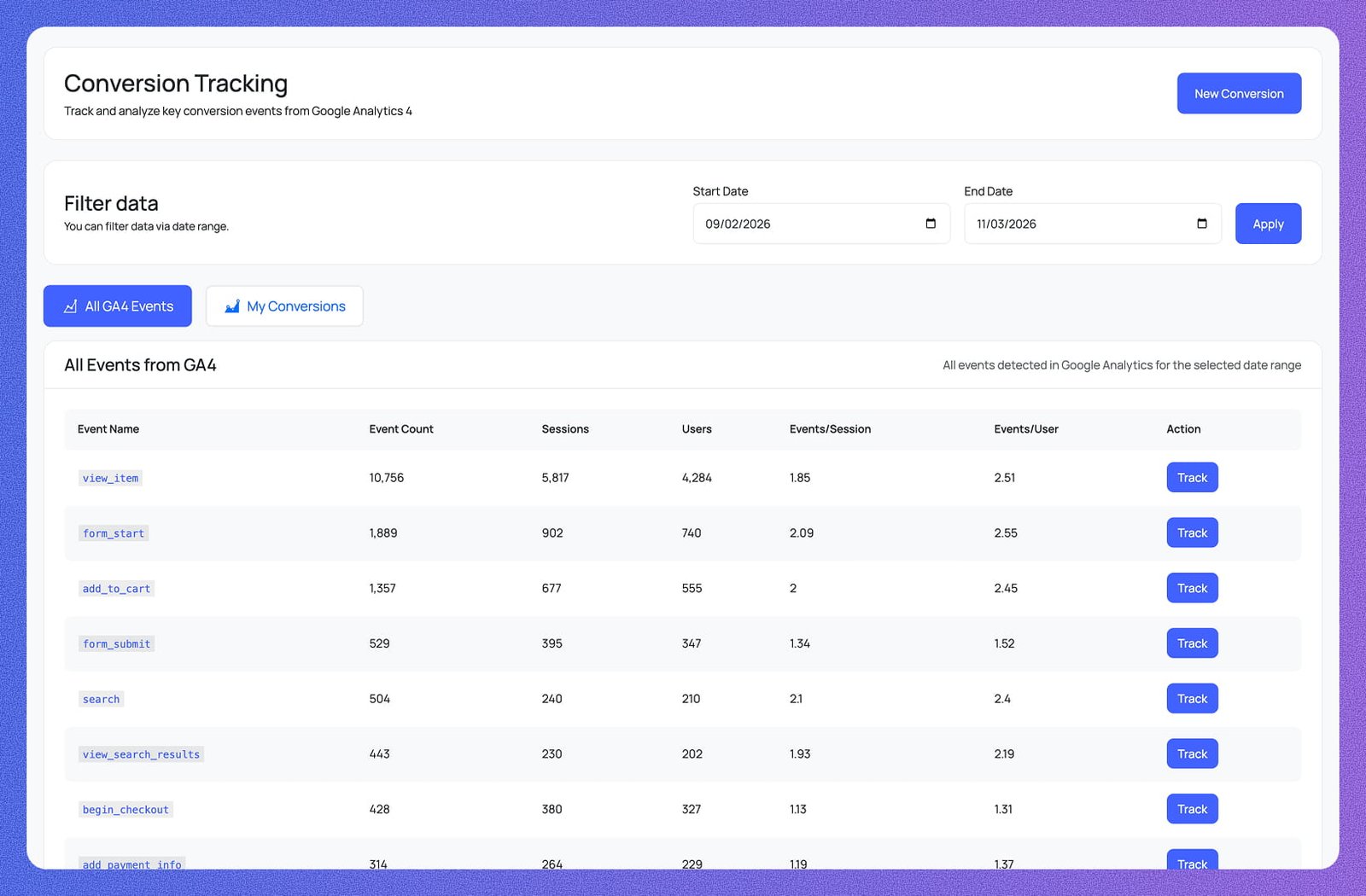
Every event detected in GA4 is listed with Event Count, Sessions, Users, Events/Session, and Events/User — view_item (10,979), form_start (1,978), add_to_cart (1,395), form_submit (547), and more. Hit Track on any row to start monitoring it as a conversion immediately.
Filter the entire conversion dashboard by any custom date range using Start Date and End Date pickers. Hit Apply and every table, card, and metric on the page updates instantly to reflect only the period you selected — no page reload required.
Switch between All GA4 Events — a full list of every event firing on your site — and My Conversions — only the events you've chosen to track in detail with goal targets, values, and progress bars. Two focused views, zero clutter.
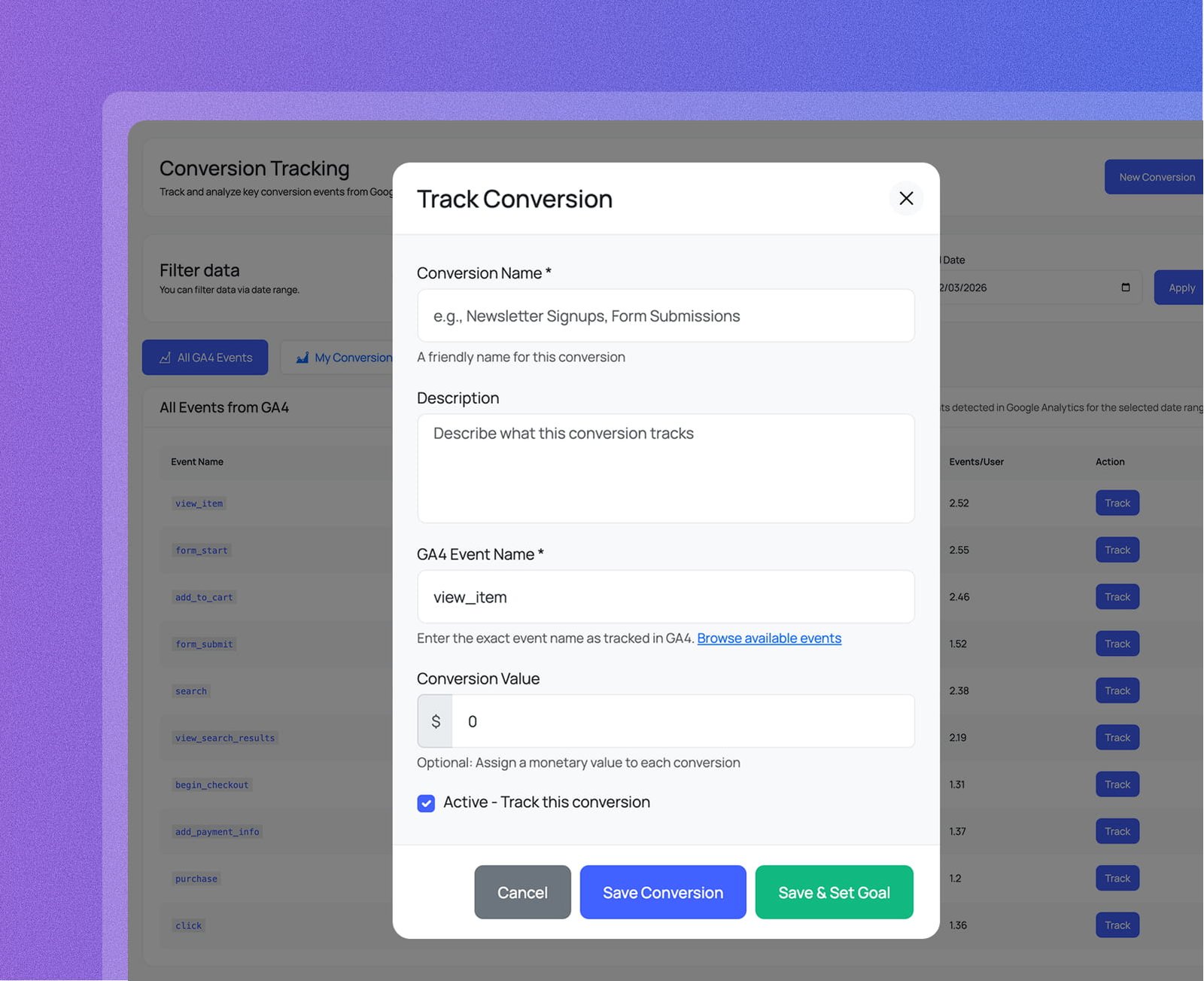
Click Track on any GA4 event row to open the Track Conversion modal — the GA4 Event Name (e.g. view_item) is pre-filled automatically. Add a friendly Conversion Name, optional description, assign a monetary Conversion Value, check Active, then save. Done in under 30 seconds.
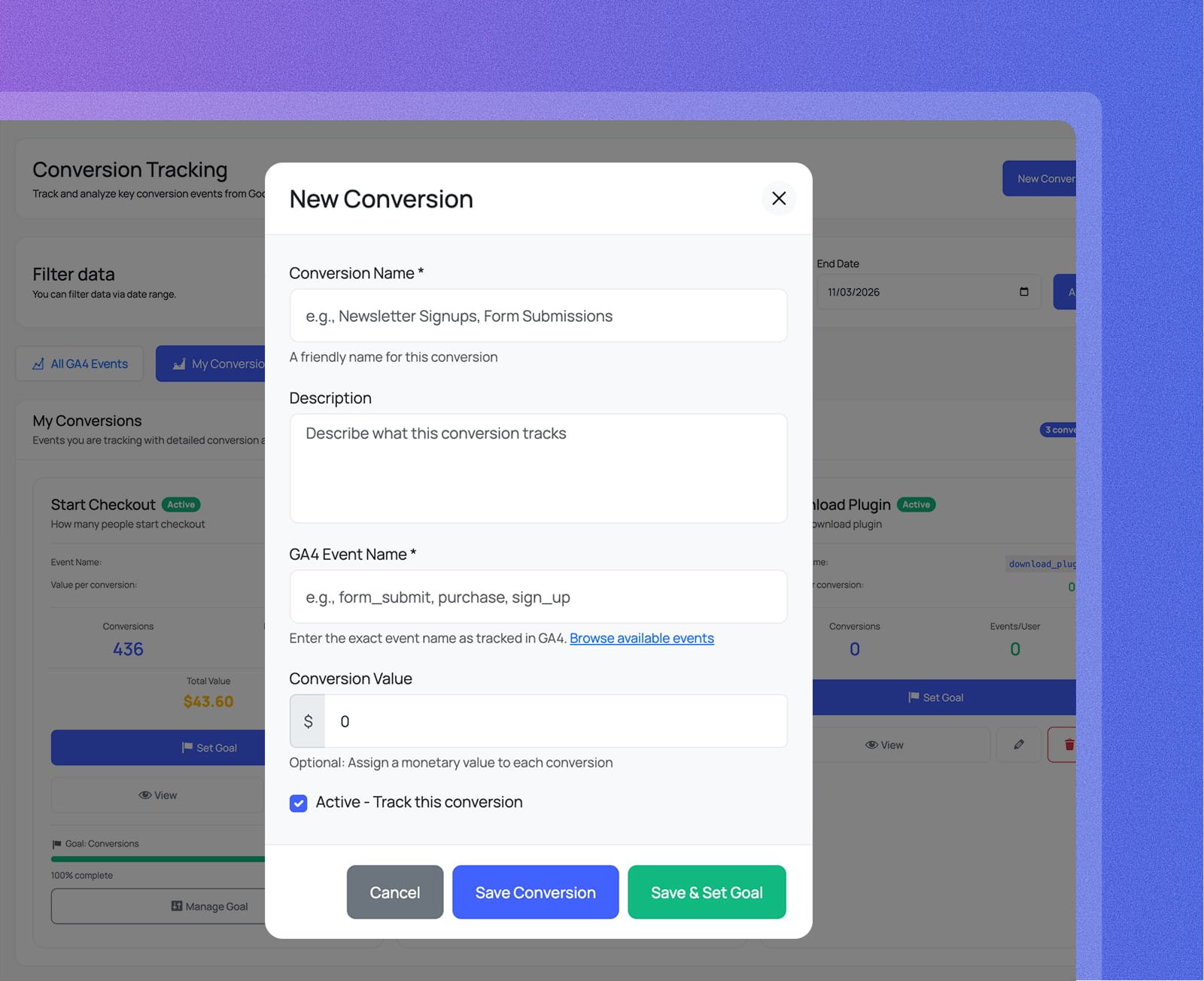
Use the New Conversion button to track any GA4 event by typing its exact name — e.g. form_submit, purchase, sign_up. Set a Conversion Name, description, optional dollar value, and active status. Choose Save Conversion to track it, or Save & Set Goal to go straight to goal setup.
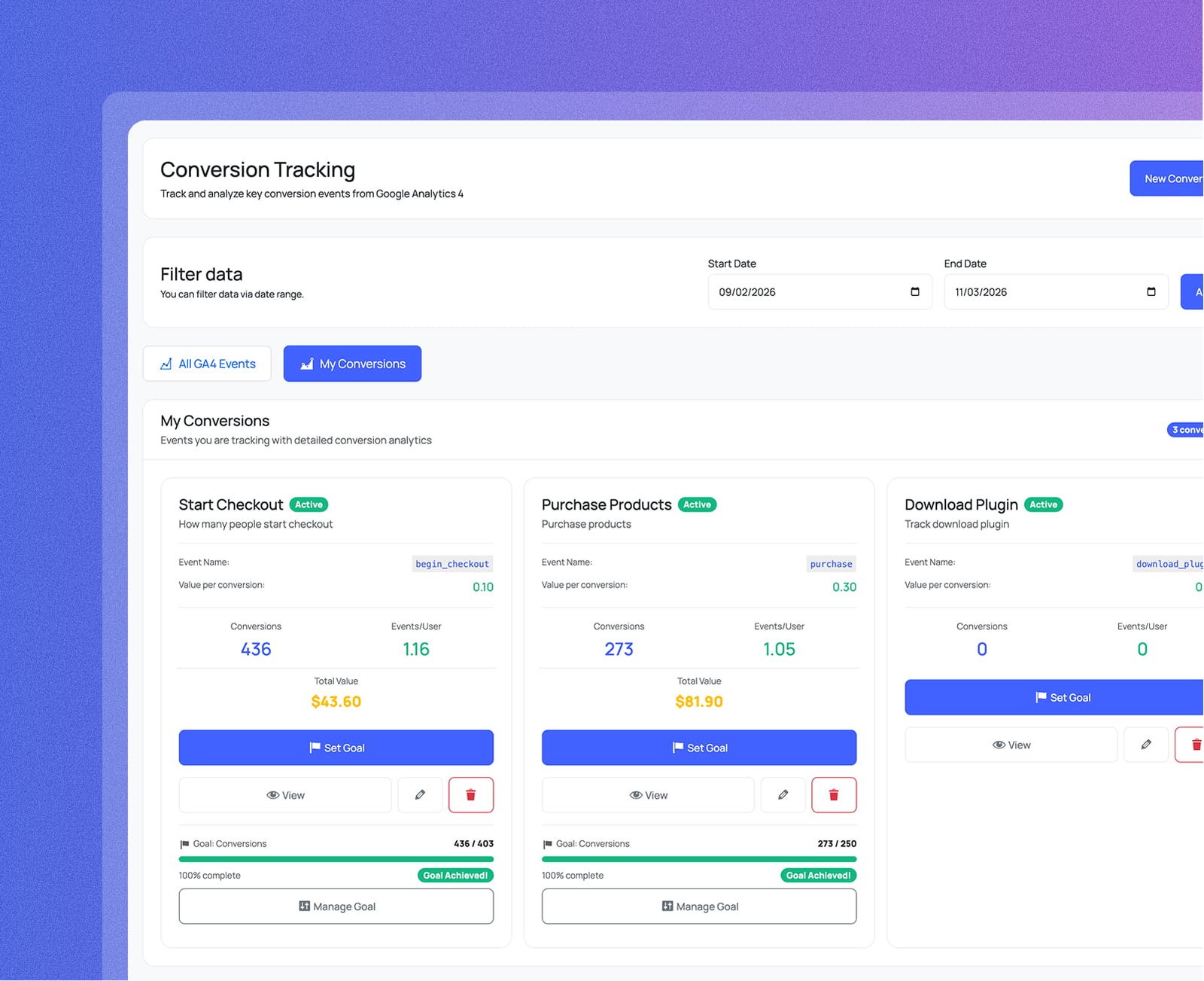
Each tracked conversion gets a dedicated card showing its GA4 event name pill, value per conversion, Conversions count, Events/User ratio, and Total Value — so you can see the monetary impact of every event at a glance. Active status badge is always visible.
Every conversion card with a goal set shows a green progress bar, the actual vs. target count, and percentage complete. When you hit your target, a green Goal Achieved! badge appears automatically — and a Manage Goal button lets you adjust the target at any time.
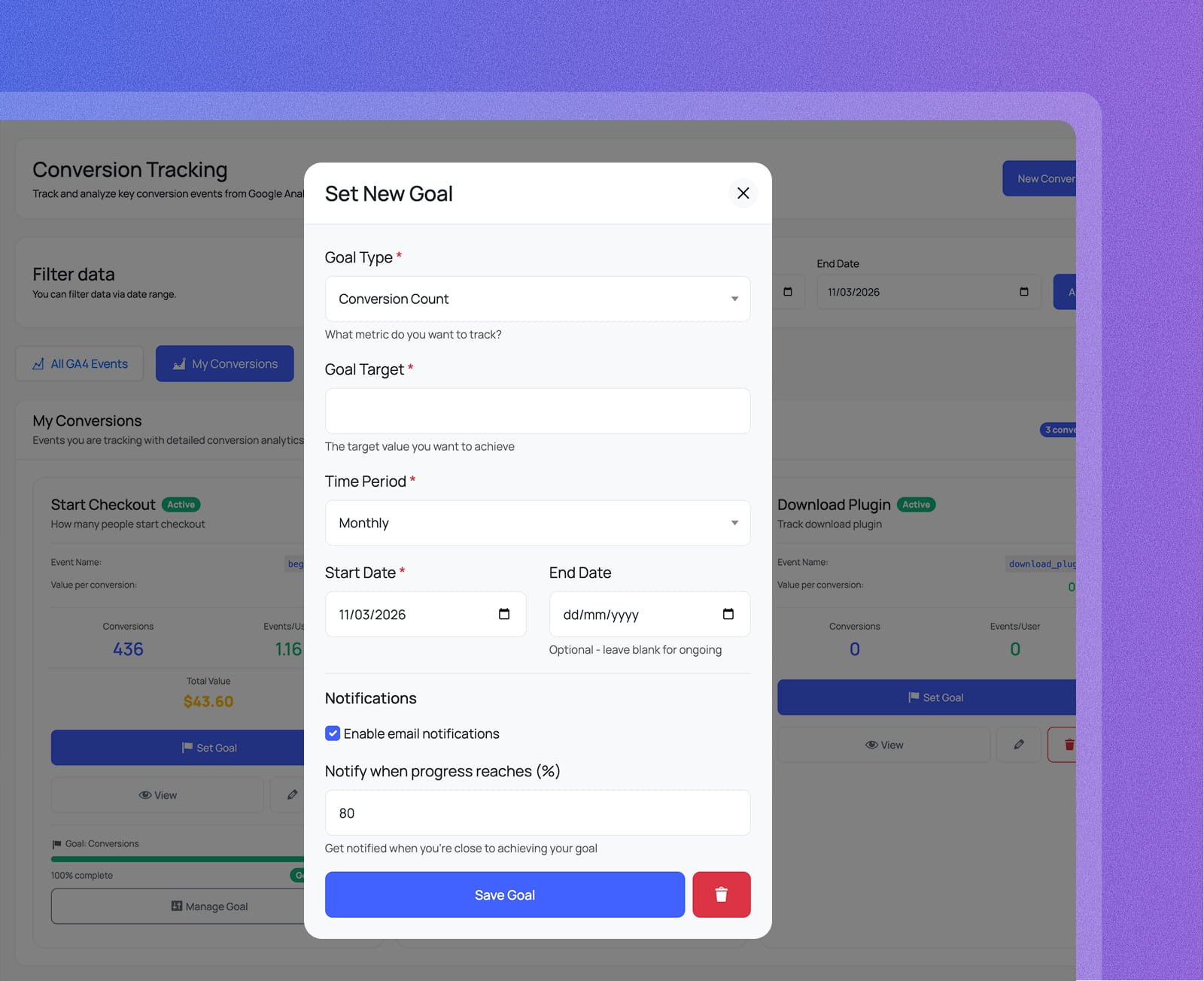
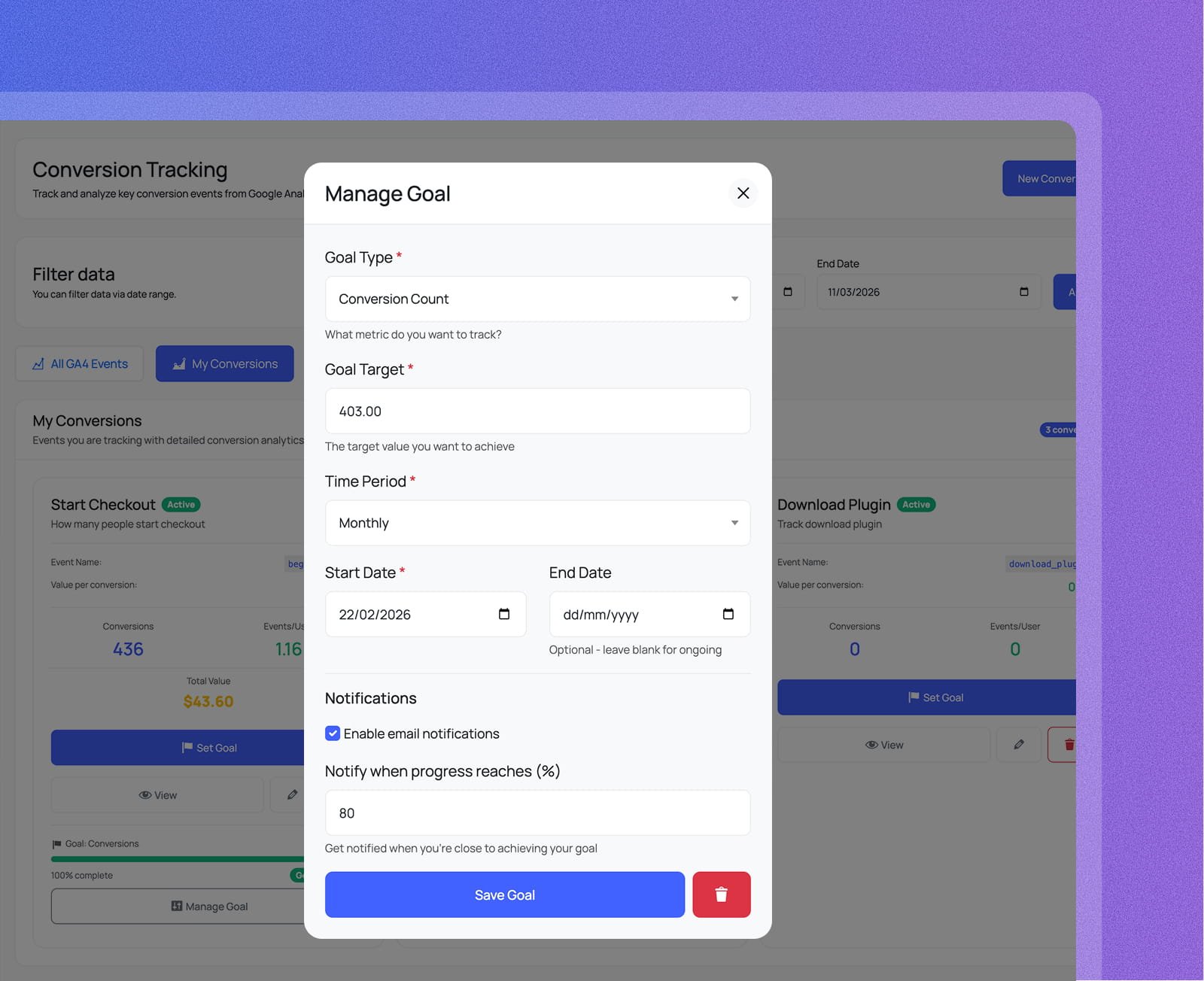
The Manage Goal modal lets you edit Goal Type, Goal Target, Time Period (Monthly, Weekly, or custom), Start Date, and optional End Date — leave blank for an ongoing goal. Enable email notifications and set a threshold percentage to get alerted before you miss a target.
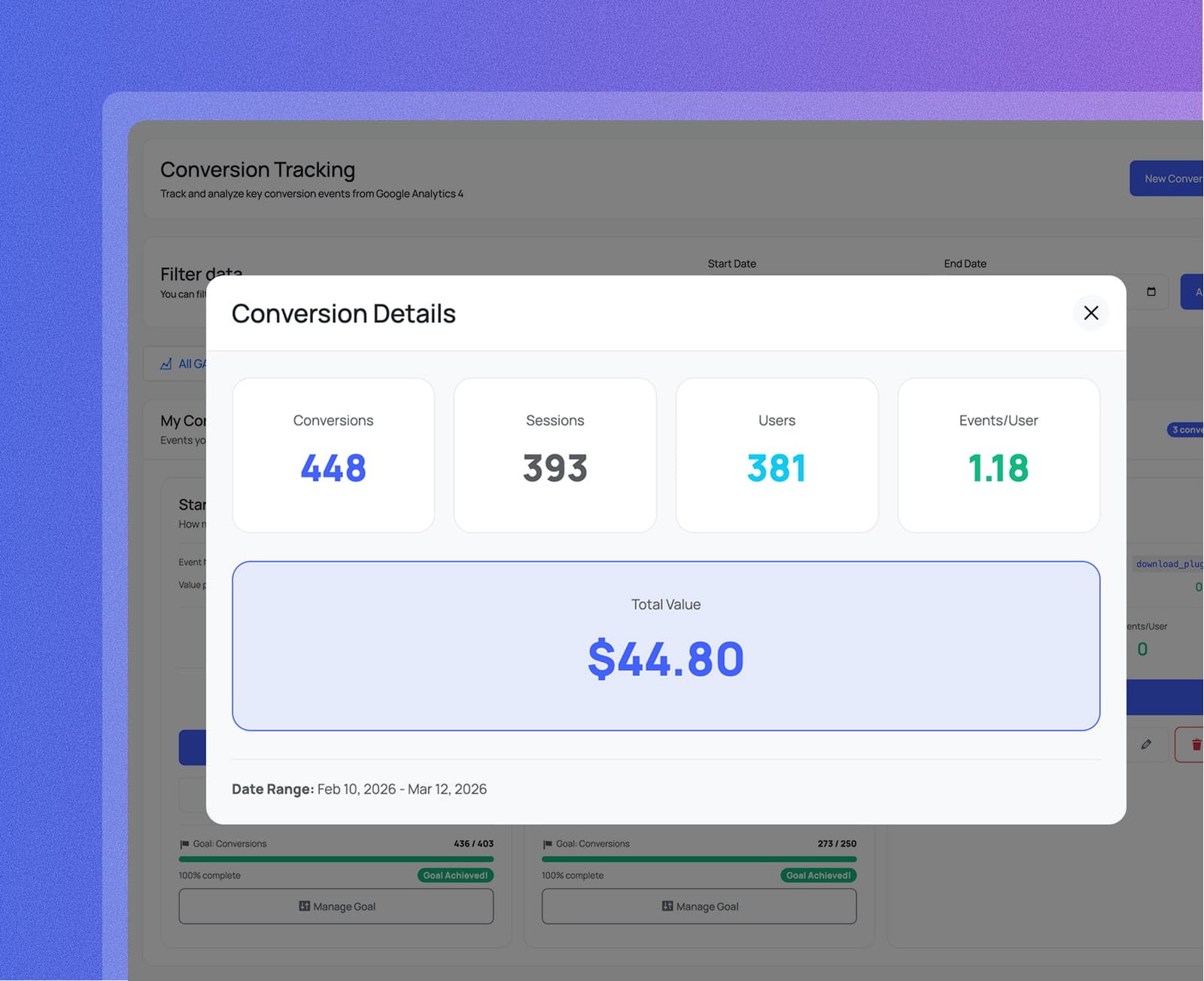
Click View on any conversion card to open the Conversion Details modal — four stat tiles show Conversions, Sessions, Users, and Events/User, with a prominent Total Value banner and the exact date range — all the numbers you need at a glance.
From tracking any GA4 event to setting goals, managing progress, and drilling into details —
the complete conversion lifecycle without leaving wp-admin.
Click Track on any GA4 event row and the modal opens with the event name pre-filled. Add a friendly name, optional description, a Conversion Value, check Active, then save.
Click New Conversion, type any GA4 event name (e.g. form_submit, purchase, sign_up), give it a name, set an optional value, and activate it. A new card appears in My Conversions immediately.
The My Conversions tab shows every tracked event as its own card with Active status, GA4 event name, value per conversion, Conversions, Events/User, Total Value, and goal progress.
Define a Goal Type, numeric target, time period, and date range for any conversion. Enable email notifications with a progress threshold so you're alerted before the period ends.
Click View on any conversion card to see Conversions, Sessions, Users, Events/User, and a Total Value banner — all metrics for a specific date range, no GA4 required.
Edit any goal's type, target, time period, and dates at any time. Adjust the notification threshold or delete the goal entirely — your conversion tracking and data are never affected.
Everything you need to know about Analytix and Google Analytics 4 for WordPress.