Conversion Tracking

Track & Analyze Every GA4
Conversion Event in WordPress

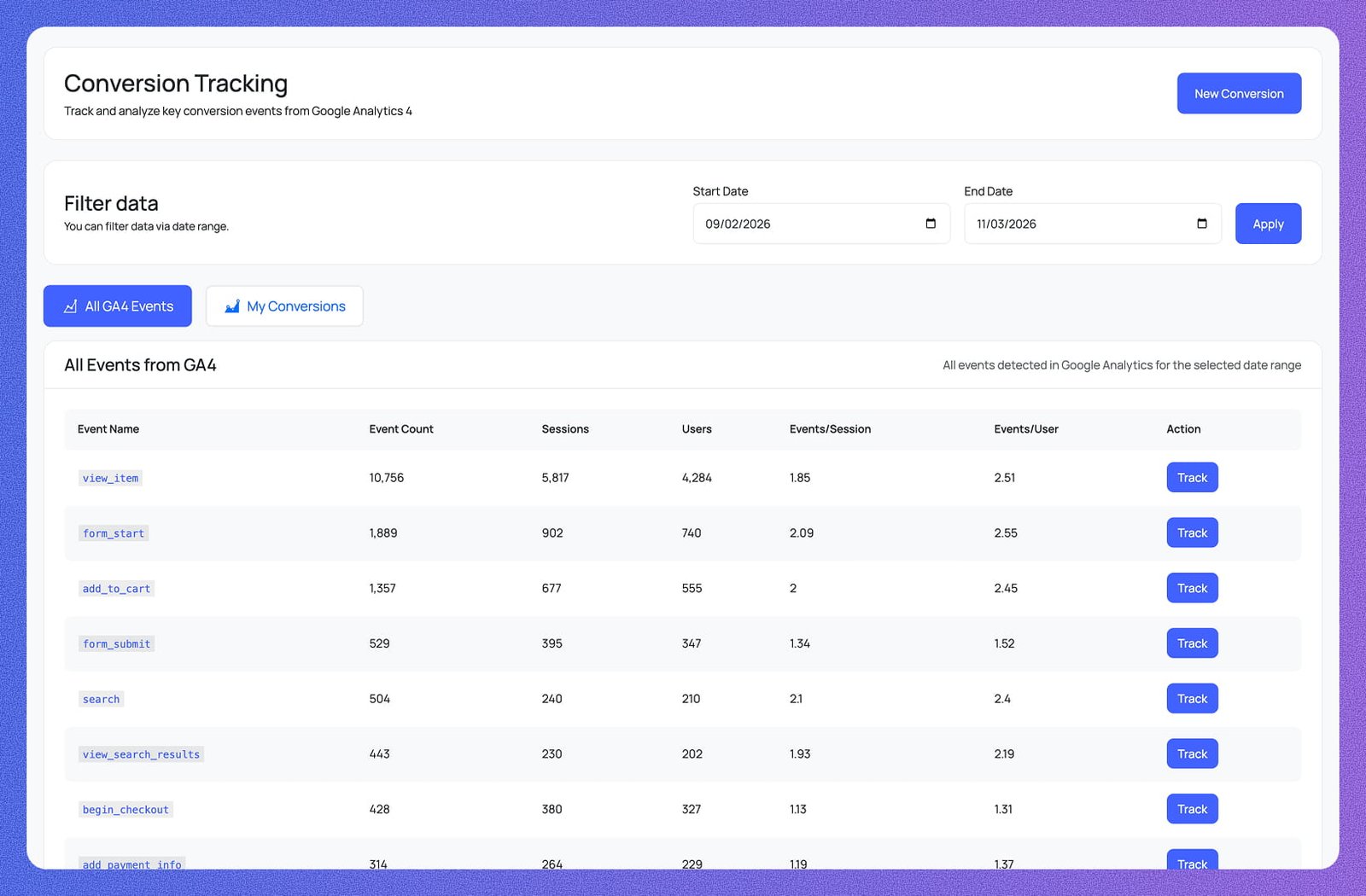
See every event detected in GA4 — view_item, form_submit, begin_checkout, purchase, and more — with Event Count, Sessions, Users, and Events/User. Click Track on any event to start monitoring it as a conversion, set a goal target, and get notified when you hit it.
Conversion Tracking inside WordPress
Live GA4 Data
10,756 view_item Events Tracked
Everything You Need to
Measure What Actually Converts

From all GA4 events to goal progress, conversion details, and email notifications — full conversion visibility right inside your WordPress dashboard.

All GA4 Events Table

Every event detected in GA4 is listed with Event Count, Sessions, Users, Events/Session, and Events/User — view_item (10,979), form_start (1,978), add_to_cart (1,395), form_submit (547), and more. Hit Track on any row to start monitoring it as a conversion immediately.

Date Range Filter

Filter the entire conversion dashboard by any custom date range using Start Date and End Date pickers. Hit Apply and every table, card, and metric on the page updates instantly to reflect only the period you selected — no page reload required.

Two-Tab View: GA4 Events & My Conversions

Switch between All GA4 Events — a full list of every event firing on your site — and My Conversions — only the events you've chosen to track in detail with goal targets, values, and progress bars. Two focused views, zero clutter.

Track Any Event as a Conversion

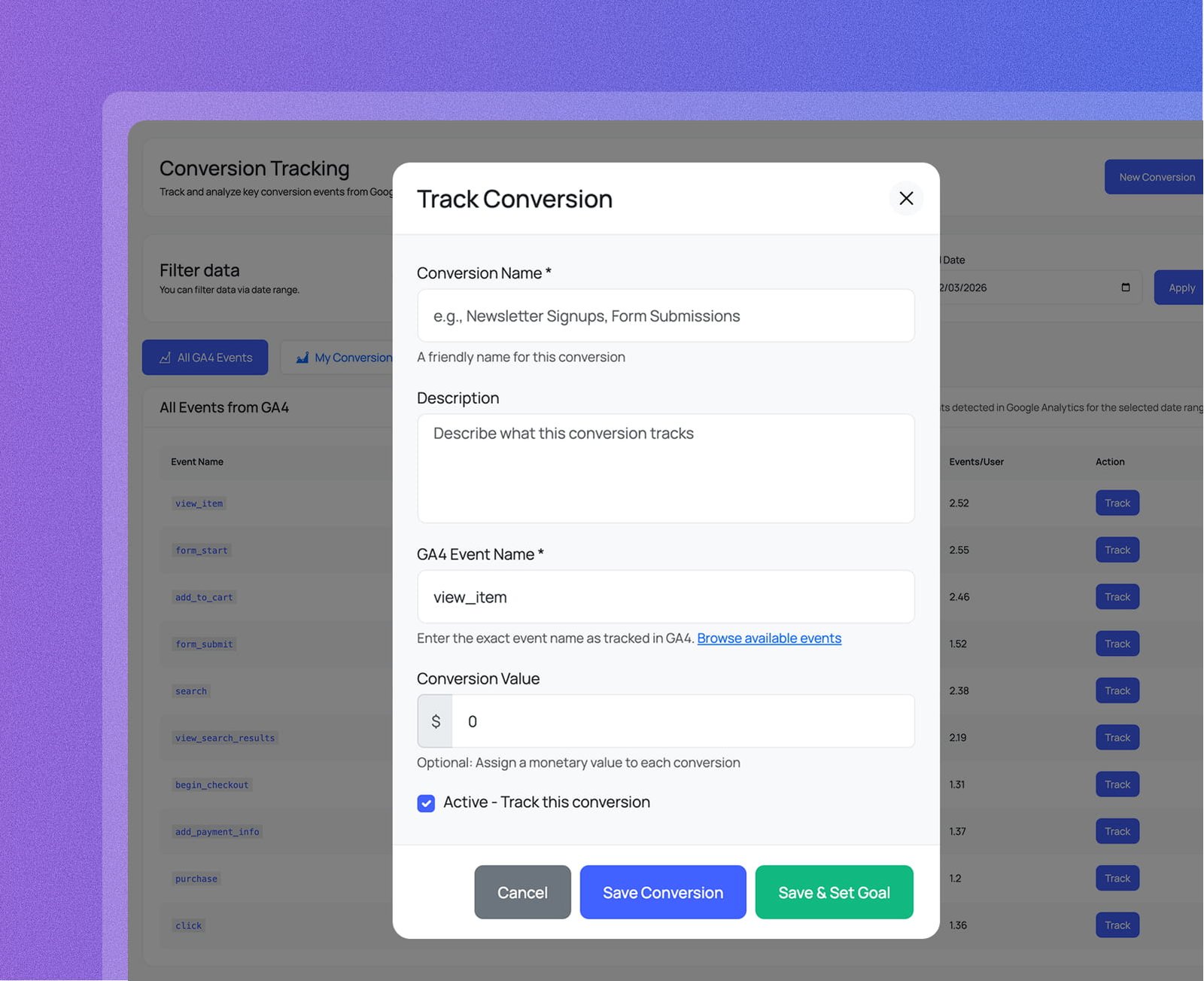
Click Track on any GA4 event row to open the Track Conversion modal — the GA4 Event Name (e.g. view_item) is pre-filled automatically. Add a friendly Conversion Name, optional description, assign a monetary Conversion Value, check Active, then save. Done in under 30 seconds.

Create a New Conversion Manually

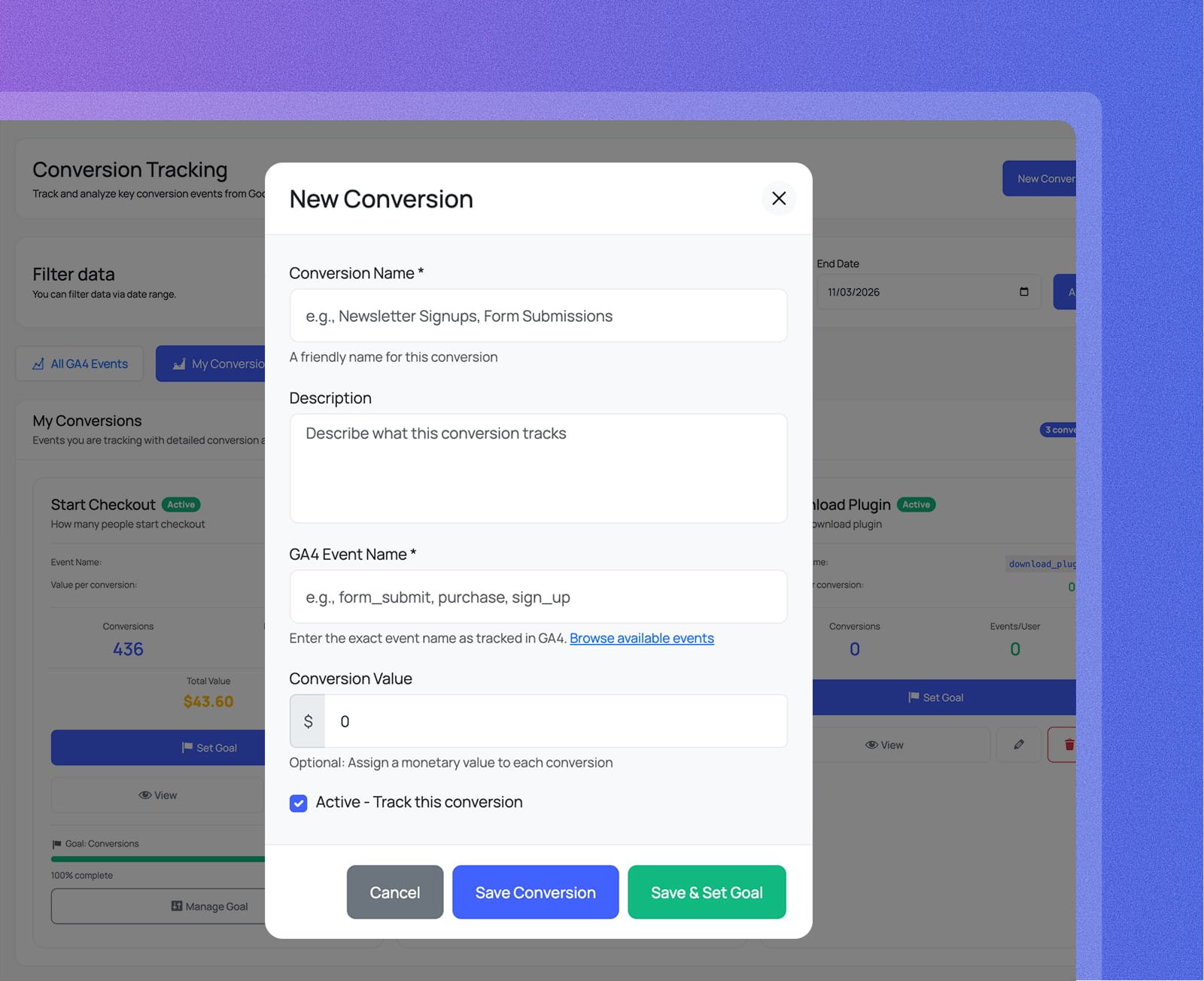
Use the New Conversion button to track any GA4 event by typing its exact name — e.g. form_submit, purchase, sign_up. Set a Conversion Name, description, optional dollar value, and active status. Choose Save Conversion to track it, or Save & Set Goal to go straight to goal setup.

My Conversions Cards

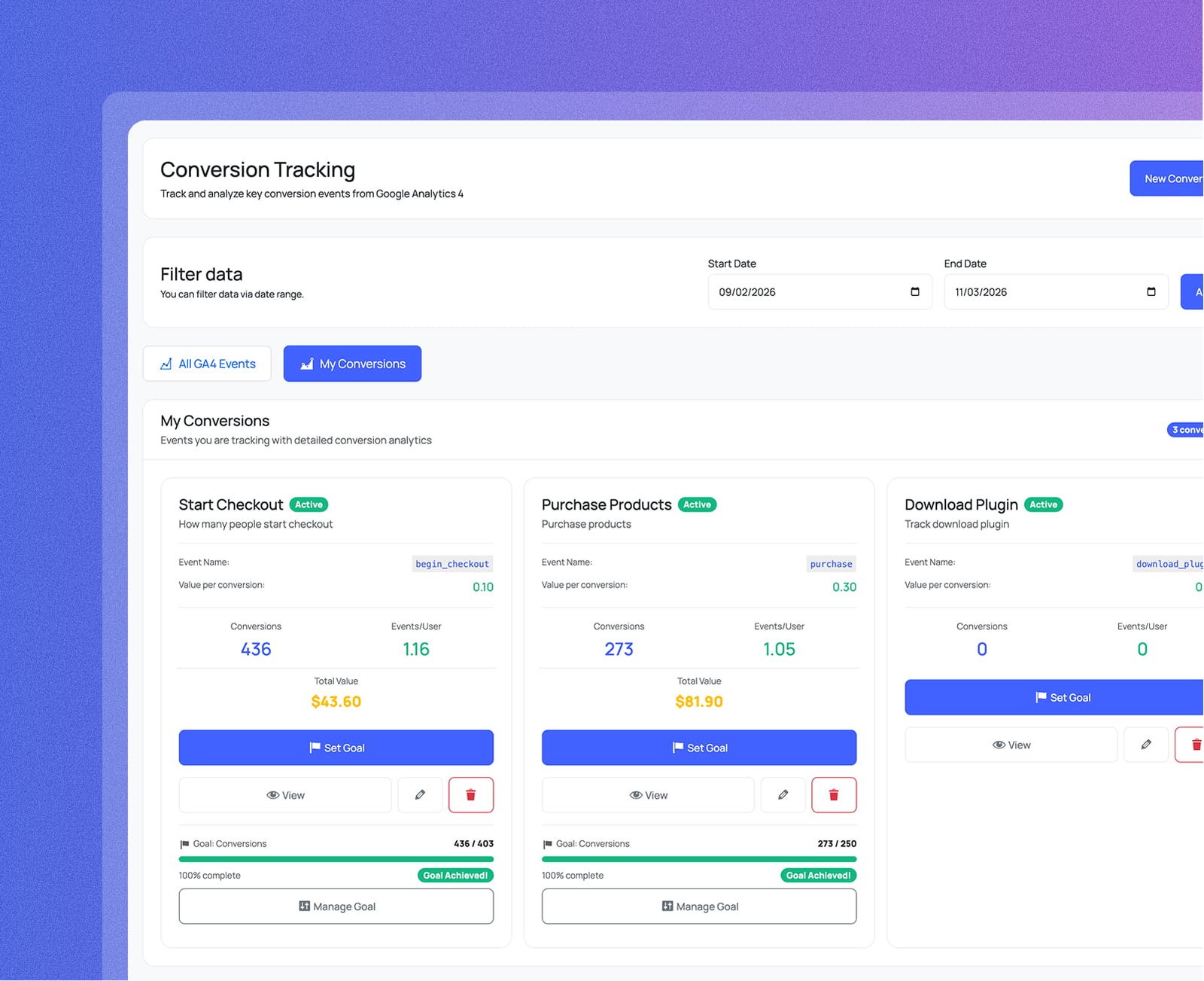
Each tracked conversion gets a dedicated card showing its GA4 event name pill, value per conversion, Conversions count, Events/User ratio, and Total Value — so you can see the monetary impact of every event at a glance. Active status badge is always visible.

Goal Progress & Achievement

Every conversion card with a goal set shows a green progress bar, the actual vs. target count, and percentage complete. When you hit your target, a green Goal Achieved! badge appears automatically — and a Manage Goal button lets you adjust the target at any time.

Manage Goal Settings

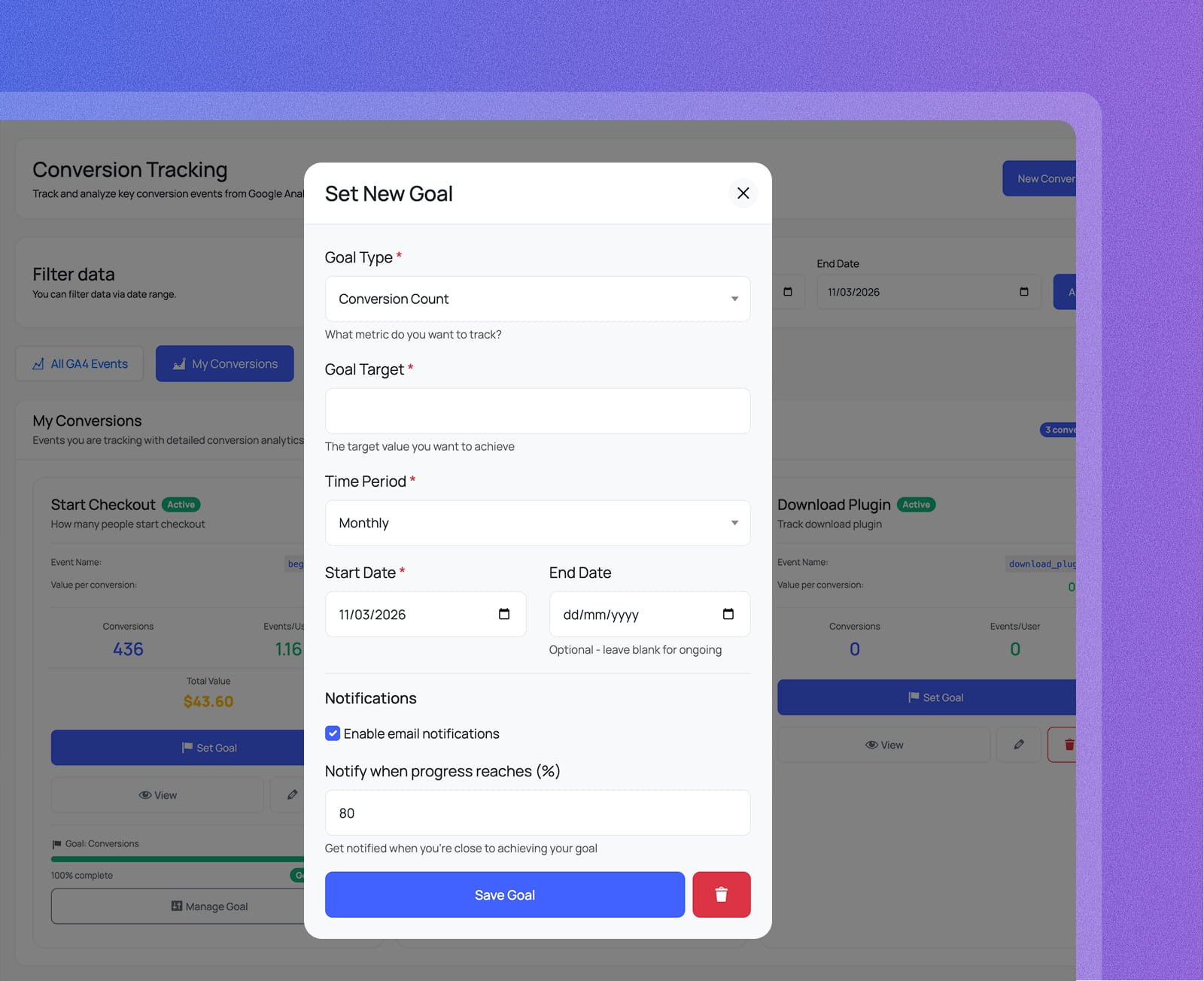
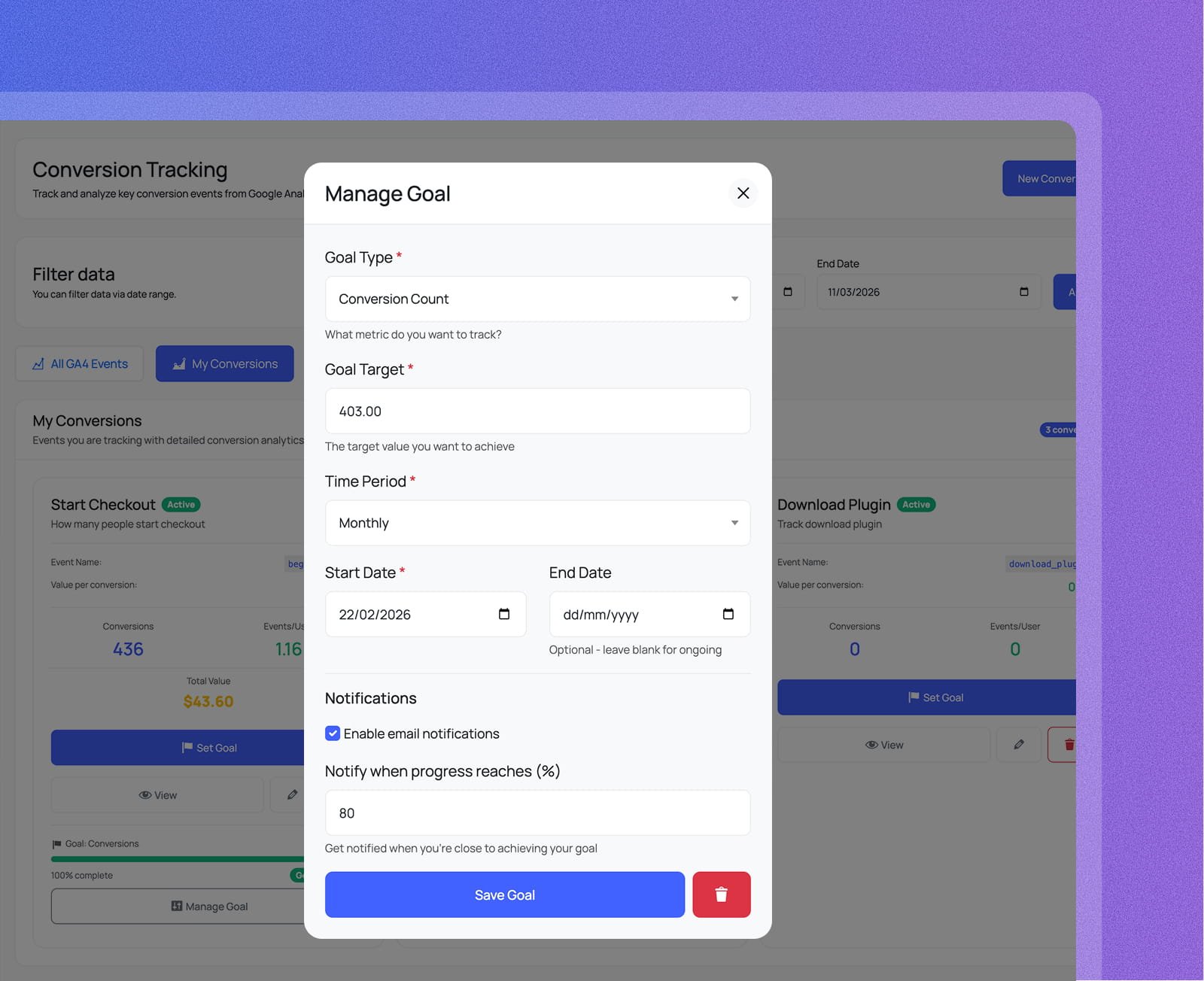
The Manage Goal modal lets you edit Goal Type, Goal Target, Time Period (Monthly, Weekly, or custom), Start Date, and optional End Date — leave blank for an ongoing goal. Enable email notifications and set a threshold percentage to get alerted before you miss a target.

Conversion Details Deep-Dive

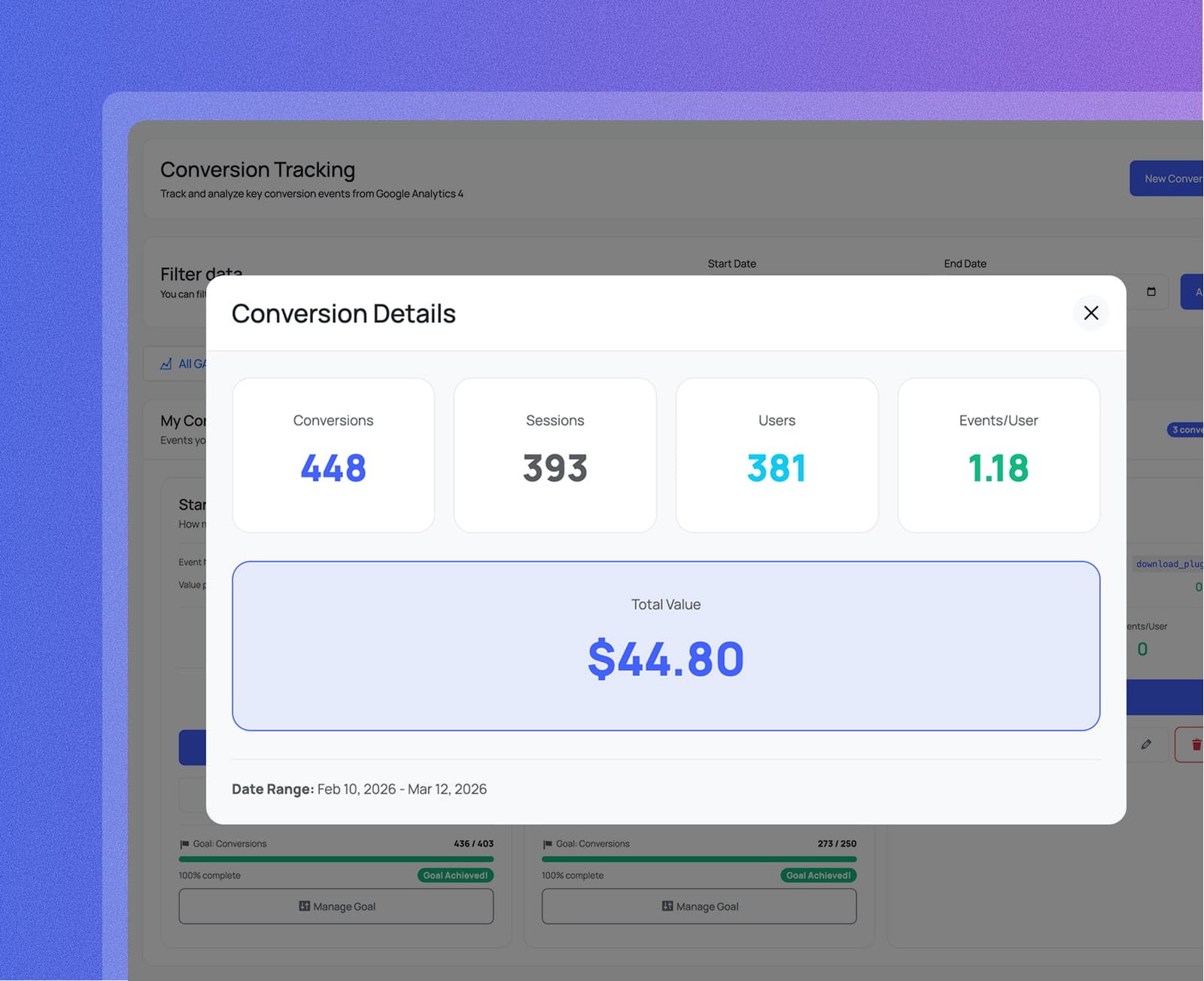
Click View on any conversion card to open the Conversion Details modal — four stat tiles show Conversions, Sessions, Users, and Events/User, with a prominent Total Value banner and the exact date range — all the numbers you need at a glance.

Every Conversion Workflow,
Built Right Into WordPress

From tracking any GA4 event to setting goals, managing progress, and drilling into details —
the complete conversion lifecycle without leaving wp-admin.

Turn any GA4 event into a tracked conversion in seconds

Click Track on any GA4 event row and the modal opens with the event name pre-filled. Add a friendly name, optional description, a Conversion Value, check Active, then save.

GA4 Event Name Pre-Filled
The exact GA4 event name is inserted automatically when you click Track — no manual typing required.
Optional Conversion Value
Assign a dollar value per conversion and the dashboard automatically calculates total monetary value for the period.
Save Conversion or Save & Set Goal
Save to start tracking immediately, or choose Save & Set Goal to jump straight into goal configuration.
Turn any GA4 event into a tracked conversion in seconds
GA4 Event Name Pre-Filled
The exact GA4 event name is inserted automatically when you click Track — no manual typing required.
Optional Conversion Value
Assign a dollar value per conversion and the dashboard automatically calculates total monetary value for the period.
Save Conversion or Save & Set Goal
Save to start tracking immediately, or choose Save & Set Goal to jump straight into goal configuration.

Create a new conversion from scratch at any time

Click New Conversion, type any GA4 event name (e.g. form_submit, purchase, sign_up), give it a name, set an optional value, and activate it. A new card appears in My Conversions immediately.

Friendly Conversion Name
Give each conversion a readable name — "Newsletter Signups", "Form Submissions" — so the dashboard is clear to the whole team.
Browse Available Events
A Browse available events link lists every GA4 event firing on your site so you always use the exact event name.
Active Checkbox
Active is checked by default. Uncheck to save without activating — re-enable in one click whenever you're ready.
Create a new conversion from scratch at any time
Friendly Conversion Name
Give each conversion a readable name — "Newsletter Signups", "Form Submissions" — so the dashboard is clear to the whole team.
Browse Available Events
A Browse available events link lists every GA4 event firing on your site so you always use the exact event name.
Active Checkbox
Active is checked by default. Uncheck to save without activating — re-enable in one click whenever you're ready.

All your tracked conversions on one clean dashboard

The My Conversions tab shows every tracked event as its own card with Active status, GA4 event name, value per conversion, Conversions, Events/User, Total Value, and goal progress.

Per-Conversion Cards
Each conversion has its own card — no shared tables, no confusion about which metrics belong to which event.
Conversions, Events/User & Total Value
Every card surfaces conversion count, Events/User ratio, and total monetary value — all the numbers you need without opening GA4.
View, Edit & Delete Actions
View opens Conversion Details, the pencil icon reopens the edit form, and the trash icon removes the conversion.
All your tracked conversions on one clean dashboard
Per-Conversion Cards
Each conversion has its own card — no shared tables, no confusion about which metrics belong to which event.
Conversions, Events/User & Total Value
Every card surfaces conversion count, Events/User ratio, and total monetary value — all the numbers you need without opening GA4.
View, Edit & Delete Actions
View opens Conversion Details, the pencil icon reopens the edit form, and the trash icon removes the conversion.

Set a measurable goal target for any conversion

Define a Goal Type, numeric target, time period, and date range for any conversion. Enable email notifications with a progress threshold so you're alerted before the period ends.

Goal Type & Target
Choose Conversion Count and enter your target number — e.g. 403 per month. Progress is tracked in real time on each conversion card.
Time Period & Date Range
Set Monthly, Weekly, or a custom period. Leave End Date blank for an ongoing goal, or set one to cap it to a specific campaign window.
Email Notifications at 80%
Enable notifications and set a threshold — you'll be alerted when progress reaches that percentage so you can act before the period ends.
Set a measurable goal target for any conversion
Goal Type & Target
Choose Conversion Count and enter your target number — e.g. 403 per month. Progress is tracked in real time on each conversion card.
Time Period & Date Range
Set Monthly, Weekly, or a custom period. Leave End Date blank for an ongoing goal, or set one to cap it to a specific campaign window.
Email Notifications at 80%
Enable notifications and set a threshold — you'll be alerted when progress reaches that percentage so you can act before the period ends.

Drill into every metric for any tracked conversion

Click View on any conversion card to see Conversions, Sessions, Users, Events/User, and a Total Value banner — all metrics for a specific date range, no GA4 required.

4 Stat Tiles in One View
Conversions, Sessions, Users, and Events/User are displayed as large-number tiles — readable at a glance without any chart-reading.
Total Value Banner
A full-width panel shows the calculated Total Value — the bottom-line number for any monetised conversion event.
Date Range Context
The exact date range is shown at the bottom so you always know which period the metrics represent.
Drill into every metric for any tracked conversion
4 Stat Tiles in One View
Conversions, Sessions, Users, and Events/User are displayed as large-number tiles — readable at a glance without any chart-reading.
Total Value Banner
A full-width panel shows the calculated Total Value — the bottom-line number for any monetised conversion event.
Date Range Context
The exact date range is shown at the bottom so you always know which period the metrics represent.

Update, adjust or delete any goal at any time

Edit any goal's type, target, time period, and dates at any time. Adjust the notification threshold or delete the goal entirely — your conversion tracking and data are never affected.

Edit Goal Target & Type
Raise the target after hitting 100%, lower it mid-campaign, or switch the metric — all without creating a new goal.
Adjust Dates & Time Period
Update Start Date, set or clear End Date, and switch between Monthly, Weekly, or custom periods to match your reporting cadence.
Delete Goal Without Losing Conversion
Deleting a goal removes only the target — your conversion tracking, history, and card stay intact so you can set a new goal any time.
Update, adjust or delete any goal at any time
Edit Goal Target & Type
Raise the target after hitting 100%, lower it mid-campaign, or switch the metric — all without creating a new goal.
Adjust Dates & Time Period
Update Start Date, set or clear End Date, and switch between Monthly, Weekly, or custom periods to match your reporting cadence.
Delete Goal Without Losing Conversion
Deleting a goal removes only the target — your conversion tracking, history, and card stay intact so you can set a new goal any time.
FAQ

Frequently Asked Questions

Everything you need to know about Analytix and Google Analytics 4 for WordPress.

Analytix is a WordPress plugin that connects directly to Google Analytics 4 (GA4) and surfaces your data inside wp-admin — no tab-switching, no GA4 login required. Authenticate once with your Google account, select your GA4 property, and your full dashboard appears instantly: sessions, users, real-time visitors, top pages, traffic sources, device breakdowns, geographic stats, and more. A built-in setup wizard walks you through every step.

Yes — Analytix reads data from your existing GA4 property via the Google Analytics Data API. If you don't have one yet, create a free account at analytics.google.com, add your website as a property, and then connect it to Analytix in under two minutes. The plugin also handles GA4 tracking code insertion automatically, so you won't need to edit any theme files.

The dashboard gives you a full GA4 overview in one place: sessions, active users, new vs. returning users, event count, engaged sessions, bounce rate, average session duration, and screen pageviews. Below that you get sessions by device, top countries and cities, top browsers and operating systems, top pages and landing pages, and traffic channel breakdowns — all filterable by date range.

Yes. Analytix injects per-post stats directly into the WordPress post and page list screens, so authors and editors can instantly see how each piece of content is performing without leaving the editor. You control which post types and user roles get access — contributors and authors can view their own content stats while admins retain full dashboard access.

Absolutely. The WooCommerce E-commerce Analytics add-on gives you a dedicated store dashboard with revenue, total transactions, average order value, and conversion rate alongside a full product performance table. You also get real-time store activity — live visitors, items currently in cart, and today's orders — all visible inside wp-admin without touching the GA4 interface.

The Search Console add-on pulls your Google Search Console data directly into WordPress — search queries, top-ranking pages, impressions, clicks, CTR, and average position. You can track keyword movements and SEO traffic trends side-by-side with your GA4 metrics, giving you a complete picture of organic performance without switching between tools.

Yes. Analytix includes a built-in Event Builder to define and track custom GA4 events without code, a Conversion Tracking module to set and monitor conversion goals, and a Campaign Tracking module with a UTM URL builder so you can measure the exact performance of every marketing campaign you run.

Yes. The Email Notifications module lets you schedule recurring analytics reports — choose which sections to include, set the delivery day and time, and add as many recipients as you need. Your whole team stays informed with fresh data delivered to their inbox automatically, with no manual effort required.

No. Analytix only runs inside the WordPress admin area. It fetches data from the GA4 API server-side and caches the results, so front-end page speed is completely unaffected. Your visitors never load any Analytix scripts — the only front-end addition is the standard GA4 tracking snippet that you would add regardless.

Yes. Analytix is fully compatible with WordPress Multisite networks. Each site in the network can connect to its own GA4 property independently, and the plugin is translation-ready with full i18n support so it works in any language your team uses.

Measure, Understand and Grow Your Audience

Connect GA4 in under a minute. Start making data-driven decisions today.

Get Analytix Now!