Custom Event Builder

Track Any Action on Your Site —
No Code Required

Build custom GA4 events with a visual, point-and-click interface right inside WordPress. Define triggers, set parameters, and start collecting the exact data you need — without touching a single line of JavaScript.
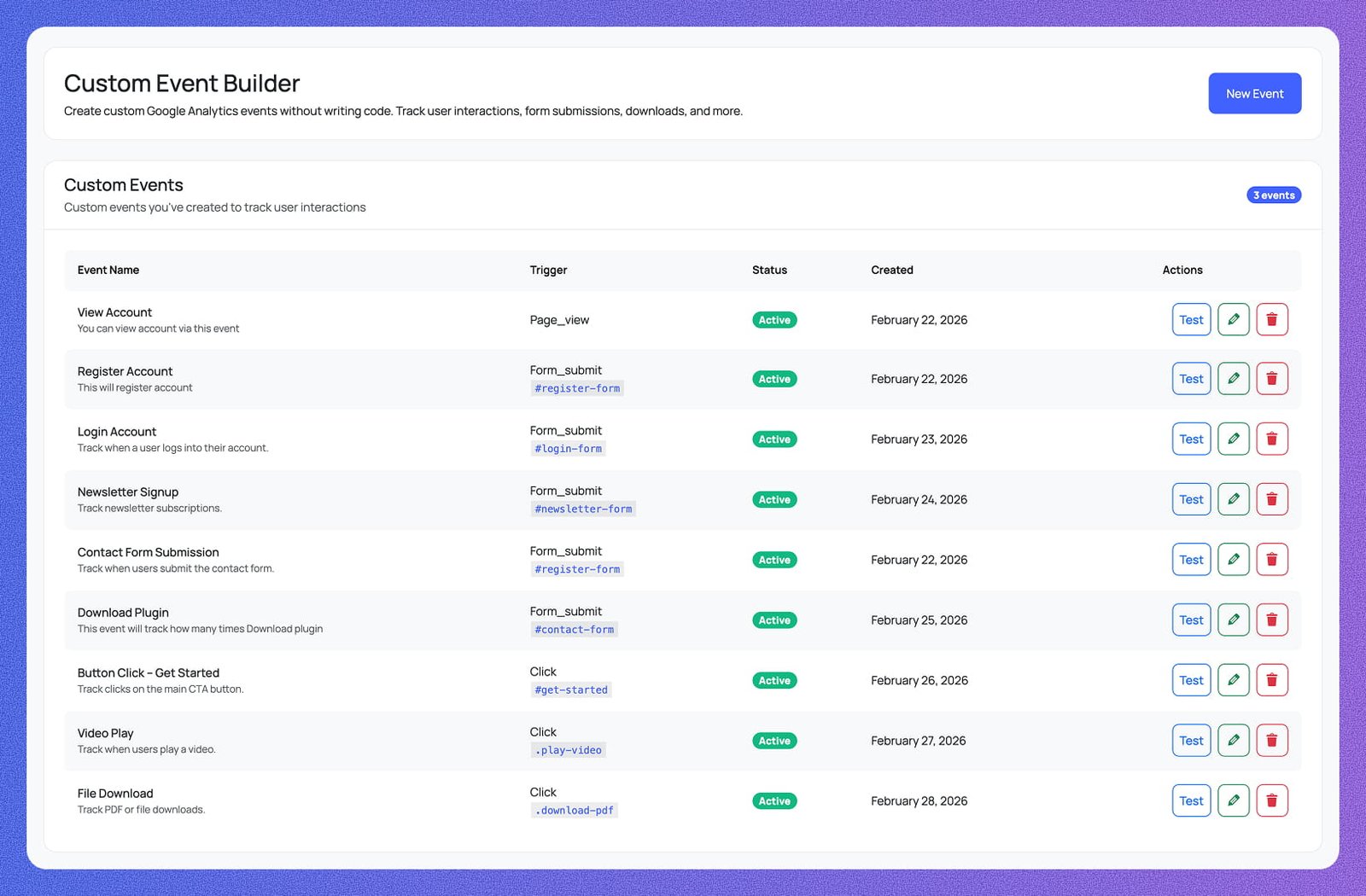
Custom Event Builder inside WordPress
No Code Needed
Visual Event Configuration
Everything You Need to
Track Any Interaction on Your Site

Click tracking, form submissions, page views, and more —
all wired up to GA4 without writing a single line of code.

Event Name & Display Name

Give each event an internal GA4 name (letters, numbers, underscores only — e.g. download_click) and a friendly display name shown in the dashboard. Both are set once and never need to be touched again.

Click, Form Submit & Page View Triggers

Choose from three built-in trigger types — Click, Form_submit, and Page_view — to match exactly how users interact with your site. Select the trigger from a dropdown and the right configuration fields appear automatically.

CSS Selector Targeting

Point any event at a specific element using a CSS selector — #register-form, #login-form, #get-started, .play-video, or any selector your theme uses. No code changes needed in your templates.

Custom Event Parameters

Attach unlimited key-value parameter pairs to any event — button text, form name, product category, page title, or any value you want in GA4. Click + Add Parameter to add as many as you need from the create event modal.

Active Status & One-Click Toggle

Every event in the list shows a green Active badge when it's live. Check the Active checkbox during setup to start firing immediately, or uncheck it to save the event configuration without activating it yet.

Test, Edit & Delete Actions

Each event row has three action buttons — Test to fire the event immediately and verify it in GA4 DebugView, a pencil icon to edit the configuration, and a trash icon to remove it. Full control from a single row.

Build & Fire Custom GA4 Events
In Minutes, Not Days

Name it, pick a trigger, add a selector, attach parameters —
your event is live in GA4 without touching a line of code.

Configure any event with a simple form

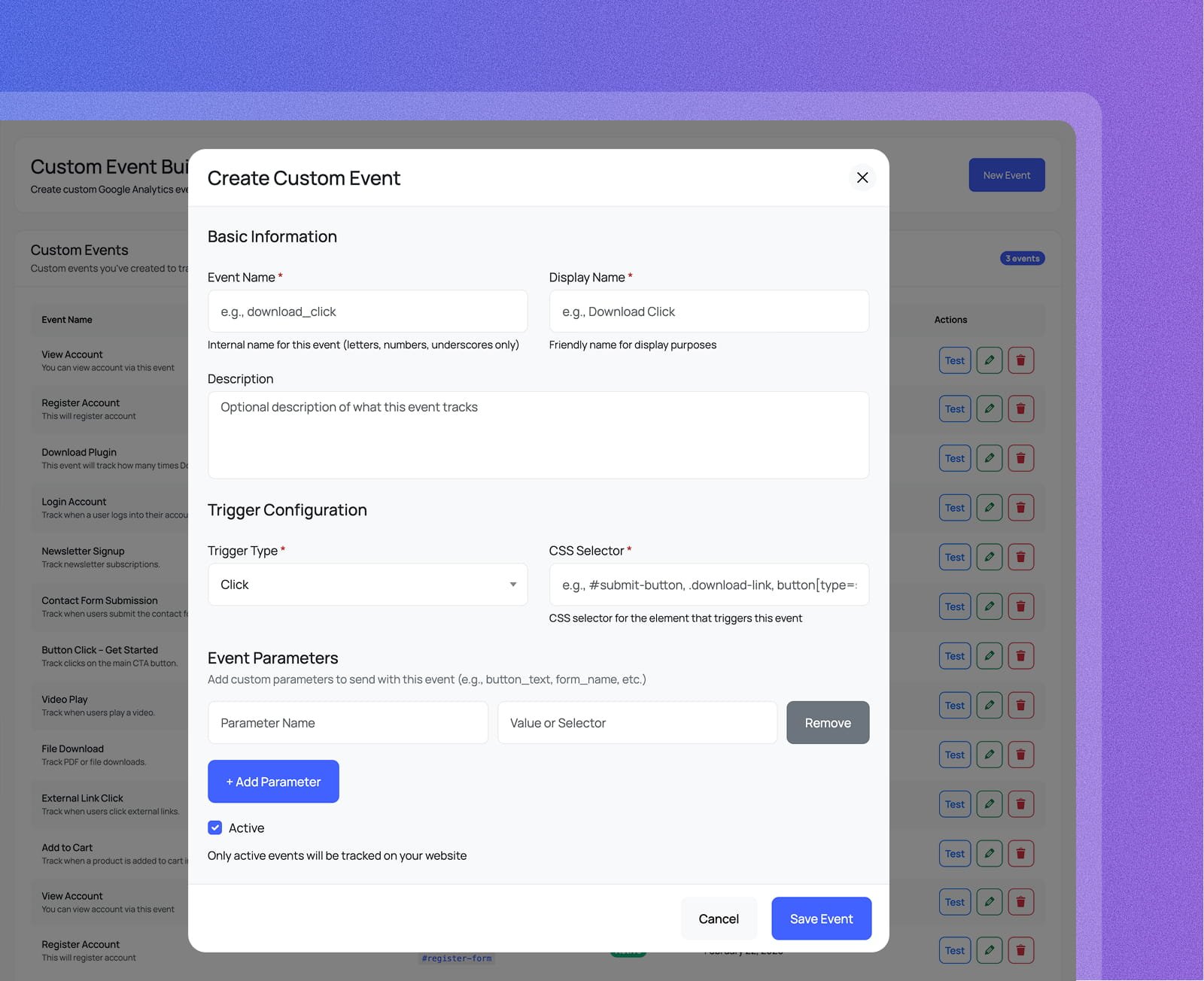
The Create Custom Event modal walks you through every setting — event name, display name, trigger type, CSS selector, custom parameters, and active status. No JSON, no JavaScript, no tag manager containers to publish.

Basic Information
Set an internal event name (e.g. download_click) and a friendly display name shown in your dashboard. Add an optional description so your team knows exactly what each event tracks.
Trigger Configuration
Choose Click, Form_submit, or Page_view from a dropdown, then paste the CSS selector for the element to watch — #submit-button, .download-link, button[type=submit], or any valid selector.
Event Parameters
Add unlimited key-value parameter pairs — button text, form name, product ID, or any custom value. Click + Add Parameter for each one and they'll appear in your GA4 event data automatically.
Create Custom Event modal in WordPress
Basic Information
Set an internal event name and a friendly display name. Add an optional description so your team knows exactly what each event tracks.
Trigger Configuration
Choose Click, Form_submit, or Page_view from a dropdown, then paste the CSS selector for the element to watch.
Event Parameters
Add unlimited key-value parameter pairs and they'll appear in your GA4 event data automatically.
FAQ

Frequently Asked Questions

Everything you need to know about Analytix and Google Analytics 4 for WordPress.

Analytix is a WordPress plugin that connects directly to Google Analytics 4 (GA4) and surfaces your data inside wp-admin — no tab-switching, no GA4 login required. Authenticate once with your Google account, select your GA4 property, and your full dashboard appears instantly: sessions, users, real-time visitors, top pages, traffic sources, device breakdowns, geographic stats, and more. A built-in setup wizard walks you through every step.

Yes — Analytix reads data from your existing GA4 property via the Google Analytics Data API. If you don't have one yet, create a free account at analytics.google.com, add your website as a property, and then connect it to Analytix in under two minutes. The plugin also handles GA4 tracking code insertion automatically, so you won't need to edit any theme files.

The dashboard gives you a full GA4 overview in one place: sessions, active users, new vs. returning users, event count, engaged sessions, bounce rate, average session duration, and screen pageviews. Below that you get sessions by device, top countries and cities, top browsers and operating systems, top pages and landing pages, and traffic channel breakdowns — all filterable by date range.

Yes. Analytix injects per-post stats directly into the WordPress post and page list screens, so authors and editors can instantly see how each piece of content is performing without leaving the editor. You control which post types and user roles get access — contributors and authors can view their own content stats while admins retain full dashboard access.

Absolutely. The WooCommerce E-commerce Analytics add-on gives you a dedicated store dashboard with revenue, total transactions, average order value, and conversion rate alongside a full product performance table. You also get real-time store activity — live visitors, items currently in cart, and today's orders — all visible inside wp-admin without touching the GA4 interface.

The Search Console add-on pulls your Google Search Console data directly into WordPress — search queries, top-ranking pages, impressions, clicks, CTR, and average position. You can track keyword movements and SEO traffic trends side-by-side with your GA4 metrics, giving you a complete picture of organic performance without switching between tools.

Yes. Analytix includes a built-in Event Builder to define and track custom GA4 events without code, a Conversion Tracking module to set and monitor conversion goals, and a Campaign Tracking module with a UTM URL builder so you can measure the exact performance of every marketing campaign you run.

Yes. The Email Notifications module lets you schedule recurring analytics reports — choose which sections to include, set the delivery day and time, and add as many recipients as you need. Your whole team stays informed with fresh data delivered to their inbox automatically, with no manual effort required.

No. Analytix only runs inside the WordPress admin area. It fetches data from the GA4 API server-side and caches the results, so front-end page speed is completely unaffected. Your visitors never load any Analytix scripts — the only front-end addition is the standard GA4 tracking snippet that you would add regardless.

Yes. Analytix is fully compatible with WordPress Multisite networks. Each site in the network can connect to its own GA4 property independently, and the plugin is translation-ready with full i18n support so it works in any language your team uses.

Measure, Understand and Grow Your Audience

Connect GA4 in under a minute. Start making data-driven decisions today.

Get Analytix Now!